Many iPhone users want to add GPS location and timestamp on photos iPhone. The default iPhone camera saves location data inside metadata. It does not show visible GPS stamp on the image. This creates problems during verification.
People search for this when they need proof of work, inspection records, travel documentation, or delivery confirmation. A visible location and time stamp photo is easier to review. Hidden metadata is not practical for client approval or audit checks.
Many users search for how to geotag photos on iPhone with visible location overlay. Others look for GPS camera apps for iPhone that add timestamp overlay directly on the image. These terms describe the same need. People want proof that is easy to verify.
This guide explains how to add GPS location and timestamp on photos in iPhone step by step. You will learn how to create visible GPS stamped photos. You will also learn best practices for accuracy and compliance.
Definition
A GPS location and timestamp photo on iPhone is an image that displays visible coordinates or address. It also displays date and time directly on the photo. This makes the photo easy to verify without tools.
Quick Answer: How to Add GPS Location and Timestamp on iPhone Photos
Use this method to create visible GPS stamped images. This works for inspection reporting and professional documentation. It also supports travel memory tracking. It reduces disputes during review.
- Install a GPS photo app for iPhone from the App Store
- Enable precise location access
- Capture the photo inside the app
- Verify the location overlay and timestamp overlay
- Save the original image without editing
If you are using Android devices, read our guide on adding GPS location and timestamp on Android. Both guides follow similar documentation standards. This keeps reporting consistent across teams.
What Is a GPS Location and Timestamp Stamp on Photos
A GPS location and timestamp stamp is a visible overlay printed directly on the image. It shows coordinates or address. It also shows the capture date and time. This makes verification simple.
The iPhone default camera stores GPS information as metadata. Reviewers cannot see metadata easily. A visible GPS stamp is readable without technical tools. This supports audit ready documentation.
Geotagging stores data inside the file properties. A timestamp overlay shows that information on the image itself. Visible proof is better for inspections and compliance workflows.
Why iPhone Default Camera Is Not Enough for Proof
The iPhone camera can record location metadata. It does not display visible coordinates on the photo. This makes manual verification harder. It also slows reporting.
Audit and reporting workflows require visible proof. Metadata requires extraction tools. Visible stamping simplifies review. It reduces follow up questions.
If you need structured reporting, read our photo proof of work guide. It explains how professionals use GPS stamped photos for approvals. It also covers storage practices.
How to Add GPS Location and Timestamp on Photos in iPhone
Follow these 5 steps:
- Install a GPS camera app
- Enable precise location
- Capture the photo inside the app
- Verify the stamp
- Save the original file
Step 1. Install a GPS Map Camera App
Download GPS Map Camera from the Apple App Store. Always install from the official listing. This ensures secure and updated versions. It also avoids fake apps.
Official versions receive stability updates. This improves reliability for professional documentation. It also reduces compatibility issues. Store installs are easier to manage.
Step 2. Enable Location Permission
Open iPhone Settings. Allow precise location access for the app. Set location permission to While Using the App. Use Always only if your workflow requires it.
Enable automatic date and time in system settings. This keeps timestamps accurate. Outdoor capture improves GPS accuracy. Wait for GPS lock before capture.
Step 3. Capture the Photo Using the In App Camera
Open the camera inside the GPS app. Frame the subject clearly. Wait for GPS lock confirmation before capturing. Keep the stamp area readable.
The image will show visible location details. It will show timestamp on the image. This supports inspection reporting and travel documentation. It also supports delivery confirmation.
Step 4. Verify Location and Timestamp Before Sharing
Check the photo preview carefully. Confirm visible address or coordinates match the site. Confirm the timestamp is correct. Confirm the image is clear.
If location appears incorrect wait for stabilization. Move to open space if needed. Retake the photo if required. Verify again before submission.
Step 5. Save and Store the Original Image
Save the original file without editing. Do not crop or compress the stamped image. Keep the original resolution for compliance. This protects readability.
Use cloud backup for secure storage. Organize files by project name or date. Keep records structured for reporting. Track submission dates when needed.
Download GPS Map Camera for iPhone
Best Practices for Accurate GPS Stamping on iPhone
- Capture outdoors when possible
- Wait for GPS signal lock
- Avoid indoor basement capture
- Keep automatic time enabled
- Do not edit stamped images
- Store original files securely
Common Problems and Fixes
Location Not Accurate
Move to open area. Wait for GPS stabilization. Restart location services if needed. Then retake the photo.
Timestamp Incorrect
Enable automatic date and time. Restart the app. Verify before capture. This fixes most timestamp issues.
Map Not Loading
Check internet connection. Confirm location permission settings. Restart the app if required. Map preview may need data.
Visible Overlay vs EXIF Metadata
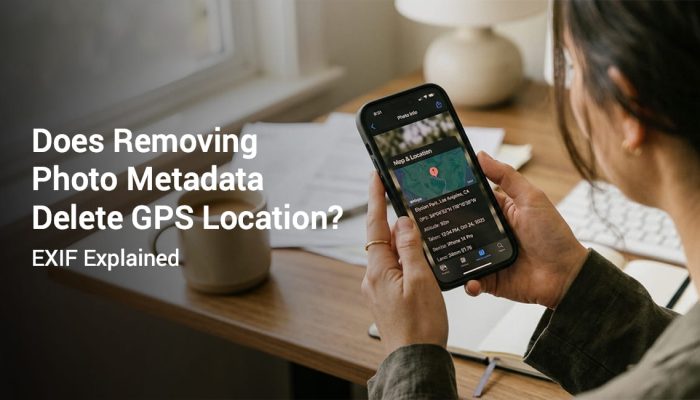
iPhone photos can store location in EXIF metadata. This is the same place where camera settings are stored. Most people cannot review EXIF data quickly. It often requires tools or a desktop workflow.
Geotagging adds location to EXIF metadata. A visible location overlay prints the address or coordinates on the image. A visible timestamp overlay prints the date and time on the image. Audits prefer visible overlays because they are fast to verify.
GPS Map Camera vs iPhone Default Camera
| Feature | iPhone Default Camera | GPS Map Camera |
|---|---|---|
| Visible location | No | Yes |
| Visible timestamp | No | Yes |
| Audit ready | No | Yes |
| Metadata visibility | Hidden | Visible on image |
| Requires metadata extraction tool | Yes | No |
If you manage inspection reporting, read our guide on site inspection photos with GPS location and time. It explains audit ready workflows. It also explains storage practices.
Compliance and Legal Considerations
Legal acceptance of GPS stamped photos depends on country rules. Always follow department or company policy. Keep original image files for official review. Do not modify stamped photos for audits.
This guide does not provide legal advice. It explains documentation best practices. Use your organization standards for final decisions. Keep records consistent.
Who Should Use GPS Stamped Photos on iPhone
Field inspectors use stamped photos for verification. Construction teams use them for daily progress tracking. Delivery staff use them for proof of service. These roles need fast review.
Freelancers use visible stamps for client reporting. Government officers use them for monitoring public projects. Travelers use them to remember exact locations. This keeps records clear.
Frequently Asked Questions
The default iPhone camera stores metadata only. It does not show visible location on the image. A GPS camera app iPhone users rely on is needed for visible stamping. This is the simplest method.
Stamped overlay is embedded in the image. Removing it may require editing. Editing reduces authenticity for audits. Keep a clean workflow for official records.
Yes. GPS works without internet. Map preview may need internet connection. Photos still save normally. Stamping still works.
Accuracy depends on signal strength and environment. Outdoor areas provide better precision. Dense areas can reduce accuracy. Always verify before submission.
Legal validity depends on jurisdiction. Follow your company or department policy. Keep original files for documentation. Use consistent reporting methods.
Credibility and Update Notes
This guide is based on professional inspection and reporting workflows used in construction, field services, and public documentation environments. It is updated for iOS 17 and 2026 documentation standards. The focus is clarity and record integrity.
Testing note: Validate steps on your current iOS version before publishing. Replace this line with your tested iOS version and app version from the App Store listing. This improves trust for readers.

Download GPS Map Camera for iPhone
If you need visible GPS location and timestamp on photos iPhone, download GPS Map Camera from the App Store. Follow setup steps in this guide. Keep original files for reporting and compliance. Share originals when policies require it.