You can view latitude and longitude in a photo whenever the file still carries its GPS data. Most phones show a map pin first and keep the raw numbers one step deeper. This guide shows where the exact coordinates appear on phones and computers. It also shows you how to read them without mistakes.
Quick Answer
Open the photo details panel to view latitude and longitude in a photo. Phones usually show a map pin and a place name there instead of raw numbers. For the exact coordinates use Windows File Explorer, Mac Preview or a free EXIF viewer app.
This page focuses on one job: finding the exact numbers and reading them correctly. For the basics of how phones store location inside a file, start with our complete guide to photo GPS and EXIF metadata.
Where Latitude and Longitude Are Stored in a Photo
Your phone writes location into a part of the file called the GPS IFD. IFD stands for Image File Directory. It belongs to the EXIF standard that almost every phone camera follows. Each piece of location data sits in its own named tag.
| EXIF tag | What it holds | Example value |
|---|---|---|
| GPSLatitude | Degrees minutes and seconds from the equator | 33 52 7.7 |
| GPSLatitudeRef | N for north or S for south | S |
| GPSLongitude | Degrees minutes and seconds from the prime meridian | 151 12 33.5 |
| GPSLongitudeRef | E for east or W for west | E |
| GPSAltitude | Height above sea level in meters | 58 |
| GPSHPositioningError | Estimated position error in meters (some phones only) | 4.7 |
The file never stores a minus sign. It keeps the number and the hemisphere letter in two separate tags. Your viewer combines them and often converts the result to decimal degrees. That conversion is why one photo can show different looking numbers in different apps.
Phone GPS coordinates use the WGS 84 reference system. Google Maps and Apple Maps use the same system. A correct pair of numbers will land on the same spot in both apps.
Which Tools Let You View Latitude and Longitude in a Photo
Phone galleries turn coordinates into a map because most people want a place name. Computers and EXIF tools show the actual numbers.
| Tool | Where to find it | Shows exact numbers | Format shown |
|---|---|---|---|
| iPhone Photos app | Swipe up on the photo | No (map and place name) | None |
| Google Photos | Swipe up or tap Details | Usually no (map and place name) | None |
| Windows File Explorer | Properties then Details tab | Yes | Degrees; minutes; seconds |
| Mac Preview | Tools then Show Inspector | Yes | Varies by macOS version |
| Mac Terminal | One mdls command | Yes | Signed decimal degrees |
| EXIF viewer app | App Store or Google Play | Yes | Varies by app |
| ExifTool | Free desktop tool | Yes | Your choice |
| GPS Map Camera stamp | Printed on the photo | Yes | Readable on any screen |
How to View Latitude and Longitude on iPhone
The iPhone Photos app shows the place on a map but hides the coordinate numbers. Use these steps when you need the exact values.
- Open the photo in the Photos app and swipe up. A map with a place name confirms that GPS data exists.
- Install a free EXIF viewer app from the App Store.
- Open the same photo inside the app and allow access to it.
- Find the GPS or Location section. Copy the latitude and longitude values shown there.
Skip the Adjust button next to the map in Photos. It edits or removes the saved location instead of showing the numbers. Have a Mac nearby? AirDrop the original photo to it and follow the Mac steps below.
How to View Latitude and Longitude on Android
Google Photos also leads with a map. Some brand gallery apps list the coordinates inside the details panel. Work through these steps in order and stop once you have the numbers.
- Open the photo in Google Photos or your gallery app.
- Swipe up or tap the three dot menu and choose Details.
- Check the location area. Some galleries show latitude and longitude here.
- Tap the map if you only see a place name. If it opens in Google Maps the dropped pin card shows the coordinates.
- Install a free EXIF viewer app from Google Play if neither screen shows the numbers.
Always open the copy saved by your camera rather than a chat download. Menu names can differ by phone brand and Android version.
How to View Photo Coordinates on a Computer
A computer shows the actual latitude and longitude values without any extra app. Move the original file from your phone with a cable or AirDrop first.

Windows
- Right click the photo in File Explorer and choose Properties.
- Open the Details tab.
- Scroll down to the GPS section to see latitude, longitude and altitude.
Windows lists each value as three numbers split by semicolons. A reading of 33; 52; 7.7 means 33 degrees 52 minutes and 7.7 seconds. This view may not show the hemisphere letter. Check the spot on a map before you copy the numbers into a report.
The GPS section can be missing on iPhone photos saved as HEIC files. Windows needs the free HEIF Image Extensions from the Microsoft Store to read them. You can also switch the iPhone camera format to Most Compatible so it saves JPG files.
Mac
- Open the photo in Preview.
- Choose Tools and then Show Inspector or press Command + I.
- Open the More Info tab and select GPS.
Want clean decimal numbers instead? Open Terminal and run this command on the photo.
mdls -name kMDItemLatitude -name kMDItemLongitude photo.jpgThe result shows signed decimal degrees ready to paste into a map. A negative latitude means south of the equator. A negative longitude means west of the prime meridian.
Any computer with ExifTool
ExifTool is a free command line tool for Windows, macOS and Linux. It reads every GPS tag in a photo. This command prints both coordinates in decimal degrees with the hemisphere letter.
exiftool -c "%.6f" -GPSPosition photo.jpgHow to Read Latitude and Longitude Numbers
Coordinates come in three common formats. The table below writes one Sydney location all three ways.
| Format | Example | Where you usually see it |
|---|---|---|
| Decimal degrees (DD) | -33.868806, 151.209306 |
Google Maps and most apps |
| Degrees minutes seconds (DMS) | 33° 52′ 7.7″ S 151° 12′ 33.5″ E |
EXIF data and Windows Properties |
| Degrees decimal minutes (DDM) | 33° 52.128′ S 151° 12.558′ E |
Handheld GPS units and marine charts |
How to convert DMS to decimal degrees
- Divide the minutes by 60.
- Divide the seconds by 3600.
- Add both results to the degrees.
- Add a minus sign for a south latitude or a west longitude.
Here is the Sydney latitude worked through step by step.
33 + (52 ÷ 60) + (7.7 ÷ 3600) = 33.868806
South latitude gets a minus sign: -33.868806
What the decimal places tell you
Each extra decimal place narrows the area by about ten times. Six decimal places pin a spot to roughly 11 centimeters. The table shows how precision changes for latitude.
| Decimal places | Example | Approximate precision |
|---|---|---|
| 1 | -33.9 |
11 km |
| 2 | -33.87 |
1.1 km |
| 3 | -33.869 |
110 m |
| 4 | -33.8688 |
11 m |
| 5 | -33.86881 |
1.1 m |
| 6 | -33.868806 |
11 cm |
Longitude steps shrink as you move away from the equator. More decimal places also do not mean a more accurate photo. A phone can save six decimals while its real error is 15 meters.
Look for the GPSHPositioningError value if your viewer shows one. That number is a better guide to the real error. Our GPS photo stamp accuracy guide explains what causes the gap between precision and accuracy.
Common Mistakes When Reading Photo Coordinates
Watch for these four problems before you share a location.
- Swapped order. Maps expect latitude first. Latitude always sits between -90 and 90. A first number like 151 tells you the order is wrong.
- Missing minus sign. A lost minus sign moves the pin to another hemisphere. It happens most often with values copied from the Windows Details tab.
- Mixed formats. DMS numbers do not work in a decimal field. Typing 33.527 for 33° 52′ 7″ puts the pin about 38 kilometers off.
- Zero values. A reading of exactly 0 and 0 points to the Gulf of Guinea off West Africa. Mapping tools call this spot Null Island. It usually means the phone saved an empty value instead of a real fix.
How to Check a Location from Photo Coordinates
Paste the latitude and longitude pair into the search bar in Google Maps or Apple Maps. Use decimal degrees with latitude first and a comma between the two values. The map then drops a pin on the exact spot.
-33.868806, 151.209306Switch to satellite view and compare the pin with what you see in the photo. Roof shapes and road lines make quick reference points. If the file has no coordinates at all, our guide covers other ways to find where a photo was taken.
Why a Photo Shows No Latitude or Longitude
A blank latitude and longitude means the file has no GPS data left. Sometimes location access was off for the camera app. The more common cause is the sharing route. Chat apps and social platforms often remove GPS tags when they compress a photo.
Ask the sender for the original file by email or AirDrop. Those routes usually keep the data. Our breakdown of which sharing methods reveal photo location shows what survives each route.
Once a copy loses its GPS tags you cannot rebuild them from that file. Learn what removing photo metadata actually deletes before you edit or export important photos.
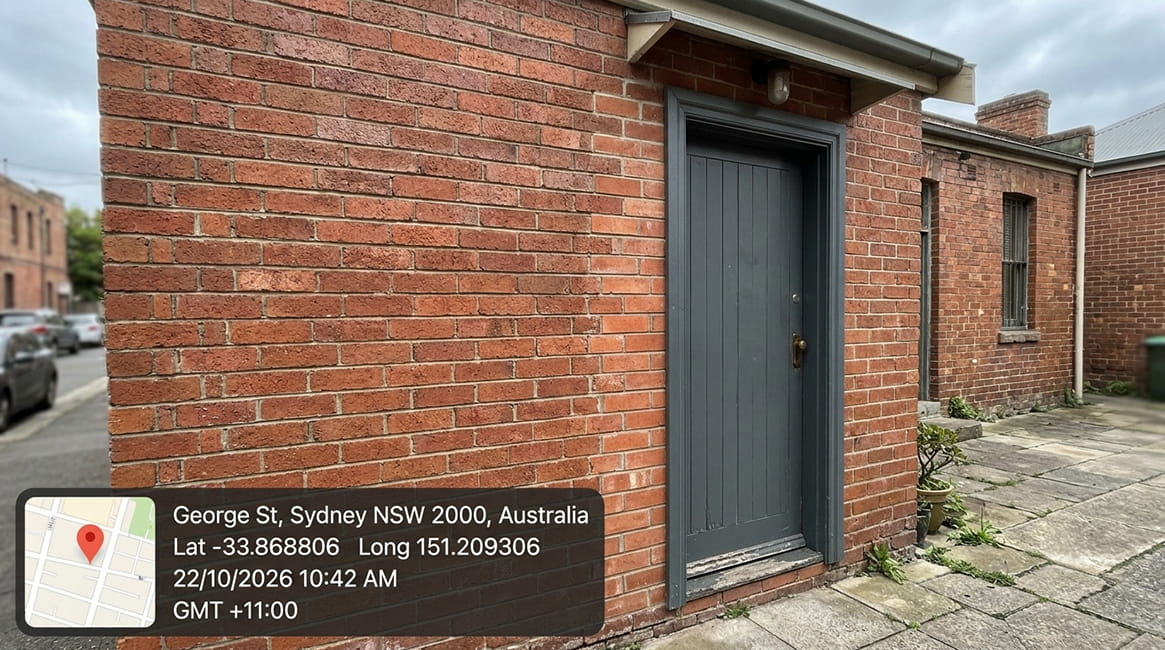
Put Readable Coordinates on the Photo Itself
Hidden coordinates help you check a photo. They rarely help the person who receives it. A visible GPS stamp prints latitude and longitude onto the image at the moment of capture. Nobody needs a viewer app or a conversion step to read them.
GPS Map Camera stamps the coordinates next to the address, date and time. The numbers stay on the image even after a chat app strips its metadata. See how the two approaches differ in our metadata vs visible GPS stamp comparison.
Frequently Asked Questions
Usually not. WhatsApp removes GPS data when it sends a standard photo. A photo sent as a document keeps the original file along with its coordinates.
Yes. Free online EXIF viewers read the coordinates from an uploaded file and plot them on a map. Avoid uploading private or work photos to sites you do not trust.
Outdoors a phone usually records a position within a few meters. Tall buildings and indoor spaces can push the error much higher. The number of decimal places does not tell you the real accuracy.
Open the file Properties on Windows or the Preview Inspector on a Mac to see the values. On a phone use a free EXIF viewer app because the gallery usually shows only a map. The photo must still hold its original GPS data.
Phone galleries turn latitude and longitude into a map pin and a place name. The numbers are still inside the file. An EXIF viewer app or a computer will show them.
Windows lists degrees then minutes then seconds separated by semicolons. A value of 40; 42; 46.08 equals 40° 42′ 46.08″. Convert it to decimal degrees before you paste it into a map app.
A negative longitude means the camera stood west of the prime meridian. Every photo from North or South America has one. A negative latitude means the camera stood south of the equator.
Capture Photos With Coordinates Already on Them
Reading hidden coordinates takes the right tool and a few conversion steps. A stamped photo skips all of that. GPS Map Camera can print latitude and longitude on every photo you take with it. Download it free and try it on your next site visit.
Download for Android | Download for iPhone
GPS accuracy may vary based on signal quality, device settings and nearby buildings. App features may vary by device and OS version.